05 May, 2020

Create Leader of All Liabilities and all Assets with Opening Balance in either Single/Multiple Mode

Create Leader of All Liabilities and all Assets with Opening Balance in either Single/Multiple Mode
LIABILITIES Rs.
Capital Account
Mr. Sanjay - Capital A/c 500000
Mr. Biplab - Capital A/c 500000
Branch/Divisions
Dhuliyan Office 100000
Farakka Office 115000
Reserves & Surplus
Profit & Loss-Prev. Year
Unsecured Loan
Loan form Mr. You 35000
Loan form Mr. Me 36000
Secured Loans
Loan from Axis Bank Ltd. 200000
Sundry Creditors
Acer India Ltd 35000
Ezone Computers 35000
HCL Limited 75000
I Ball Industries 40000
Intel Solutions 50000
Radian Techno 70000
Samsung Pvt Ltd 60000
Sarala and Co 20000
Shwetha & Sons 20000
Sony India Limited 90000
Tally DCP 100000
Tally MTP 46000
Thakral I nfotech Ltd 82000
Other Creditors Supreme Furniture 8000
Xcel IT Care 4500
Honda Motors Ltd. 3300
Provisions Electricity Payable 2580
Telephone Expenses payable 3000
Salary Payable 21000
Interest Payable 7000
GST Payable 15000
Total Liabilities: 2293380
ASSETS
RS.
Fixed Assets
Funriture 50000
Machinery 110000
Land & Building 125000
Office Equipments 60000
Computers 35000
Vehicle 40000
Investments
Investment in Co. Shares 25000
Investment in Mutual Fund 75000
Investment in Insurance 6000
Deposits (Asset)
Security Deposit for Office 10000
Security Deposit for Godown 15000
Security Deposit for Telephone 5000
Fixed Deposit in Bank 2000
Loans & Advances (Asset)
Loan to Mr. X 12000
Loan to Staff 18000
Advance to Staff 2500
Advance to Parties 20000
Current Assets
Bank Account
HDFC Credit Card
40000
Axis Bank 65000
ICICI Bank 80000
ICICI CREDIT CARD 0
Cash-in-hand
Cash (Don't Create-already created) 0
Petty Cash 0
Stock-in-hand
Cloing Stock (Don't Create) 1323380
Sundry Debtors
Corporate Customer
Adarsh Tiles Pvt. Ltd 10000
Kannan Co. 5000
Lexsite Pvt. Ltd. 0
Rony Antony & Co 0
Sodexo Gift Voucher 0
Local Dhuliyan Customer
Chitra and Co. 15000
DFG Co. 12000
FGH PL 18000
Kanchan .Com 7500
Laxmi and Com. 7500
Shailesh and Sons 0
Outside Dhuliyan customers
Akhil and Co. 6000
Darshan and Sons 8000
Eric Enterprise 10000
HJK Industries 10000
Shrinivas and Co. 7000
Shrinivas Pvt. Ltd. 5000
Wholesale Customers
Adarsh and Computers 11500
Eric Lazarus 2000
Mr. Sachar 10000
Shwetha and Co. (Debtors) 7500
Stabilo computers 9000
Sudershan and Co. 8000
Tams & Co. 5000
TOTAL ASSETS 2293380

01 May, 2020

Creating a Expenses / Income LEDGER

Go to Gateway of Tally > Accounts Info > Ledgers > Create

Assignment
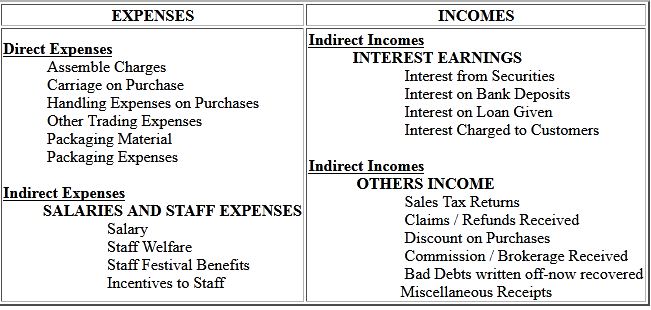
Create the following Ledgers under Single Mode
Go to Gateway of Tally > Accounts Info > Ledgers > Create (Single)
EXPENSES INCOMES
Direct Expenses
           Assemble Charges
           Carriage on Purchase
           Handling Expenses on Purchases
           Other Trading Expenses
           Packaging Material
           Packaging Expenses

Indirect Expenses
          SALARIES AND STAFF EXPENSES
                          Salary
                          Staff Welfare
                          Staff Festival Benefits
                          Incentives to Staff
Indirect Incomes
           INTEREST EARNINGS
                        Interest from Securities
                        Interest on Bank Deposits
                        Interest on Loan Given
                        Interest Charged to Customers

Indirect Incomes
            OTHERS INCOME
                        Sales Tax Returns
                        Claims / Refunds Received
                        Discount on Purchases
                        Commission / Brokerage Received
                        Bad Debts written off-now recovered
                       Miscellaneous Receipts
2.Create the following Ledgers under Multiple Mode
Go to Gateway of Tally > Accounts Info > Ledgers > Create (Multiple)
EXPENSES
ADMINISTRATIVE EXPENSES
              Printing & Stationery
              Traveling Expenses
              Conveyance
              Telephone / Taxes / Fax Charges
              Courier / Postage Charges
              Repairs and Maintenance
              Rent Paid
              Electricity Bill
              License Fees,
              Municipal Taxes
             Subscription & Membership Fees
              Fuel and Maintainence of Vehicle
              Warehousing Expenses
             Insurance Premiums
             Legal Expenses
             Professional Fees
             Computer Expenses
            Charity and Donations
            Loss due to Theft/Pilferage/Damage
             Discounts and Sales Rebates
             Miscellaneous Expenses

SELLING & DISTRIBUTION EXPENSES
            Advertisement Expenses
            Sales Promotion Expenses
            Entertainment Expenses
            Conference Expenses
            Exhibition Expenses
            Bad Debt
            Interest on Loans
            Interest Charged by Supplier
            Bank Charges
            Commission / Brokerage Paid
            Depreciations 

04 December, 2019

What is Inventory Stock Item, Groups and Units?


INVENTORY
The main concept of Trading activities are receipt of goods and delivery of goods. We generally call PURCHASE or SALE activities. The trading items can be RAW MATERIAL, FINISHED GOODS, SEMI FINISHED GOODS eat. For better Organization you can use the group and sub-group for classification of the trading item.

Inventory Info Menu
You can create the inventory form this menu, which contains the following options:
1.     Stock Group: Create your group here, for example, Raw Materials, Work-in-progress, Finished Goods, etc.
2.    Stock Items: Create your Stock Items  here, for example, TV. Sound System, VCD, etc.
3.    Voucher Types
4.    Unit of Measurement: Create your measurement Unit for Items, for example, LTR. MTR, PCS, BOX etc.
5.    Quit: Exit from the menu.
Before creating the Inventory info menu we should know what stock groups, stock items and units of measurement are.

What are Items, Groups and Units?


Definitions
Stock Items: Stock items the primary inventory entity, like Ledgers. Usually it means Item or Product. which can be buying, selling or issue for production purpose. Each item is required to be accounted for, and receipt or issue needs to be created. In fact, you will create a stock ledger accounted for, and Tally.ERP calls this account “stock Item”.

Stock Units: You can measure Stock Item by Units, like money is measured in Currency. For example, Liters, Meters , Kilograms, Pieces, Box, Dozen, etc. Units can be classified under the following types:
1.    Single Units: When only one Unit is used for receipt and issue of stock items. Abovementioned are all example of Single Units.
2.    Compound Units: When two different types of Units can be used for receipt and issue of the Stock item is called compound unit. For example:
First Unit    Conversion Factor     Second Unit
Dozen             12                                Pcs.
Meter             1000                            Millimeters.
 Box                30                               Pcs.

Stock Group: As per requirement of the business items can be created, but to generate a report on similar type of stock items you need the classification of stock items. This classification will help you to get stock report in an organized manner. For example, Raw Material, WIP, Finished Goods, Hardware, Software, Electrical, Electronics, etc.

Creating a Single Stock Group
Form this screen you can create a single stock group in the following manner:
Gateway of Tally.ERP – Inventory Info – Single  Stock Group – Create.
Enter the name of the Group.
Select the group under which this group will be classified.

Know this:
Alias
Enter additional name apart from primary name (if required). You can create any number of additional names.

Under
Specify whether it is a primary group or a sub-group of another group, by selecting from the list. Press Alt+C to create a parent group, if you do not have it in the list.

Can quantities of items be ADDED?
This field pertains to information measuring the units of the stock Items that you would categories under the stock Group.
The Stock Items categorised under the group should have similar units for them to be added up. You cannot add quantities in Kgs to quantities in Pcs.
Any modifications such as name, change of parent group is possible here.
Set/Alter GST Details: See GST Chapter
Modifying a Single Stock Group
Gateway of Tally.ERP – Inventory Info – Single Stock Group – Alter
Displaying a Stock Group
Gateway of Tally.ERP – Inventory Info – Single Stock Group – Display
Deleting a Single Stock Group
Gateway of Tally.ERP – Inventory Info – Single Stock Group – Alter


01 December, 2019

Pre-defined Voucher Types in Tally.ERP9


 Go to Gateway of Tally > Display > List of Accounts > Ctrl+V
                 Or
Go to Gate way of Tally > Accounts Info / Inventory Info > Voucher Types > Alter

Alter a Pre-defined Voucher Type:
Even if you do not need extra voucher types, you would normally Alter the predefined voucher types to customize them according to your needs to your needs, e.g.. to control their numbers.

  Go to Gateway of Tally > Accounts info/Inventory Info > Voucher Types > Alter


 The Voucher type creation screen is divided into three sections depending on various settings.
  • General
  • Printing
  • Voucher Class
Type of Voucher
The type of voucher should be any one of the predefined voucher types already listed. The new voucher type would inherit the properties of this predefined voucher type. It would function exactly like the predefined voucher.

Abbr (Abbreviation)
An abbreviation is required particularly for unformatted reports, which do not use compressing techniques. (Tally.ERP9 allows printing of both formatted and unformatted reports). Even if the abbreviation is not specified, Tally.ERP9 automatically sets a default name for the Voucher. In this example, Sale is the abbreviation. Though there is no restriction on the length of the abbreviation, it should preferably consist of five characters or less.

Method of Voucher Numbering
This is, perhaps, one reason for your opting for a new voucher type. There are three methods available.


Automatic
This method is flexible. If Automatic method is selected, then Tally.ERP9 numbers the vouchers automatically.

Automatic (Manual Override)
Select Automatic (Manual Override) if you want to auto-number the vouchers and manually override the auto-numbering, if required. For example, if the voucher number is 10, you can manually override the voucher number as required, say 21. The next voucher number will be 22.
Set Prevent Duplicated to Yes to avoid duplicate voucher numbers during entry. You can enable this option only if there are no transactions of this voucher type.

Manual
This method allows you to number the voucher manually. It dose not check for the sequence of the numbers and permits you to specify anything that you whis in the voucher number field. However, you may choose to prevent entry of duplicate numbers. If you would like to do so, the set Prevent Duplicates to Yes.

1. Prevention of Duplicates is possible if you enable the option at the time of creation. You may enable it later (by alteration) only if there are no transactions of this voucher type.
2. If you face difficulty duo to existing transactions, just create another voucher type for preventing duplicates of subsequent numbers.


Multi User Auto Voucher Numbering 
The Multi-User Auto Voucher Numbering feature in Tally.ERP9 works effectively in multi user environment where multiple users are working on the company data and recording vouchers.
Multi-User auto voucher numbering helps.

Where multiple users are attempting to pass a sales voucher simultaneously, the process may be hindered due to the voucher number allocation.

When a specific voucher number is used by one of user the other user will have to re-accept the voucher so that the next available voucher number is allotted to his voucher.

To ensure that the vouchers are numbered sequentially.

To ensure that the bill-wise details do not have to re-entered manually as it will get updated with the new voucher number on acceptance of voucher entry.

Let us consider three users: Mr. Mohan , Mr. Shyam. All the three users are typing to record a sales voucher. The voucher on each of their system is numbered as 25. Mr. Mohan saves the voucher fist and his voucher  will be saved as 25. But when Ram and Shyam attempt to save the voucher, the error mesage "Voucher Number 25 Already used! New number will be xx!" appears.

In order to eliminate this error message and avoid the re-acceptance of the voucher, Tally.ERP9 provides the option of Multi-User Auto Voucher Numbering.

Note: This will disable numbering of such vouchers. If you select this method,no further information is required.

Use Advance Configuration
If the Method of Voucher Numbering is set to Automatic, then an additional field to set the advanced configuration for the Voucher type is displayed. Setting this field to Yes, Voucher Type Creation (Secondary) screen is displayed.

30 November, 2019

A further discussion on these options is necessary.

A further discussion on these options is necessary.
Use EFFECTIVE dates for vouchers?
Select Yes if you want to enter effective dates for vouchers. You would opt for this if you have instances where a transaction under consideration for overdue/ ageing analysis is recorded currently but will come into effect form another date. If the effective dates is entered,the overdue/ageing will be considered form the effective date and not from voucher date.

Make Optional as Default
Setting this option to Yes, will set your Voucher to Optional Voucher by default. Refer to Optional Vouchers for further details.
Note: For Memorandum and Reversing Journal voucher the option Make Optional as Default will not be shown.

 Use common narration?
Select Yes to give a common narration for the entire voucher. Tally.ERP9 vouchers can have multiple entries. Hence, you may wish to give a common narration for all the entries of the voucher. Select No, you do not want a common narration.
Example of common narration  in a voucher: 

Narrations for each entry 
Select Yes, if you want to give a separation narration for each entry of a voucher. This would be applicable for a multiple entry voucher where you went separate details for each entry. Select No if you do not want a separate narration for each entry.

Note: To get the Narration for each entry raise the  sales in As Voucher and for Payment or Receipt vouchers, sel Use Single Entry mode for Pymt/ Rcpt/Contra to in F12:Configurations.

For Delivery Not. Receipt Not, Sales order, Purchase order, Physical Stock, Stock Journal, Rejection In and Rejection Out, the option Narration for each is deactivated. 

Print after saving voucher?
Select Yes to print every voucher after entering it, else select No. This is suitable for an online environment were you use Tally.Erp9 printed vouchers as the formal voucher. Remember, that the transaction is already recorded and posted and should you wish to make corrections to the printed voucher, you must alter the Tally.ERP9 voucher online and print it again.

Note: If we select Receipt as Type of Voucher the option Print Formal Receipt saving will be displayed. Depending on the Type of Voucher you have selectd to create or alter, different printing features appear in this field.
 

GSTR1, GSTR2A, GSTR3B details Complete discuss

GSTR1, GSTR2A, GSTR3B details Complete discuss
GSTR1

Sales

Goods @18% 220000/-
CGST @9% 19800/-
SGST @9% 19800/-
---------------------------
Total = 259600/-
---------------------------

GSTR2A

Purchase

Goods @18% 200000/-
CGST @9% 18000/-
SGST @9% 18000/-
---------------------------
Total = 236000/-
---------------------------


GSTR3B

Particulars                   Taxable Value           CGST          SGST
Outward Supplies           220000/-                   19800/-        19800/-
Outward Supplies           200000/-                   18000/-        18000/-

Tax Liabilities - Eligible ITC = Payable amount
CGST          19800/-         -    18000/-       =    2800/-
SGST          19800/-         -    18000/-       =    2800/- 

                  Eligible ITC - Tax Liabilities = ITC
CGST9%      36000        -     27000          = 9000
SGST 9%     36000        -     27000          = 9000
Tax Value    (400000)     -    (300000)

Eligible ITC IGST 18% 36000/- (200000 Purchase)
Tax Liabilities IGST 18% 9000/- (50000 Sales)
                        CGST 9% 15300/- (170000 Sales)
                        SGST 9% 15300/- 

IGST ITC 36000/- - T.L. IGST 9000 = 27000/- IGST ITC
IGST ITC 27000/- - T.L. IGST 15300 = 11700/- IGST ITC
IGST ITC 11700/- - T.L. IGST 15300 = 3600/- IGST ITC

Payable Tax Amount = 3600/- SGST 

Sales Invoice or Tax Invoice in Tally ERP9

Sales Invoice (F8)
When goods / services are sold, a voucher needs to be created, which the customer (debtor) can use as proof of purchase made. This document is called an “invoice”. Tally.ERP has facility to generate invoices according to the business requirements.

Gateway of Tally.ERP>Accounting Vouchers >F8: Sales displays the Sales Invoice.

Pre-defined Voucher Types in Tally.ERP9
Go to Gateway of Tally > Dispaly > List of Accounts > Ctrl+V (Voucher Types) Or

Go to Gateway of Tally >Accounts info /Inventory Info > Voucher types > Alter

Alter a Per-defined Voucher Type
Even if you do not need extra voucher types, you would normally alter the predefined voucher types to customize them according to your needs, e.g. to control their numbers.
Go to Gateway of Tally >Accounts info /Inventory Info > Voucher types > Alter


The Voucher Typecreation screen is divided into three sections depending  on various settings. 
Tax Invoice


28 November, 2019

Voucher Type in tally erp9

Voucher Type in tally erp9
VOUCHERS TYPE:

By default in Tally.ERP9, there are 18 different pre-defined Voucher types (where Payroll feature is enabled, the number of pre-defined voucher types will be 20). Voucher type pertains to Accounting, Inventory and Payroll. These are used for recording various transactions according to the user needs.

Examples include Cash Payment Vouchers and Bank Payment vouchers where the relevant predefined voucher is Payment Voucher. You may have  two or more sets of Sales Vouchers for different kinds of sales transactions e.g. Credit Sales, Cash, Sales, eac.

If a voucher type is created, you can.

Have the different Voucher numbering methods.
Give own prefix and suffix details for the voucher nunbering.
Use the Effective Dates for the vouchers.
By default, make some vouchers optional if required.  
Decide to have the Common Narration or Narration for each entry.
Automate the printing immediately after saving the vouchers.
Get separate reports for each type of voucher.

Display or Alter or Deletation a single ledger account in tally erp9

Display or Alter or Deletation a single ledger account in tally erp9
Display or Alter a Single Ledger Account:
 Information under Display and Alter is the same. Display option not permit any modification. Alter option permits you to alter the information.

You are allowed to alter any information of the ledger master with the exception of the Closing Balance of a ledger account, if any, other then closing balance of accounts under the group Stock-in-hand.

Go to Gateway of Tally>Accounts Info.>Ledgers>Display or Alter

Modification of Account Ledgers is Possible under Single Ledgers as wall as Multiple Ledgers option. However under Multiple Ledgers, all the fields are mot available for alteration

Deleting a Single Account

You can delete the ledger if no vouchers have been created under ledger.

Go to Gateway of Tally>Accounts Info.>Ledgers>Alter>Press Alt+D

If you want to delete a Ledger for which Vouchers have been created, then you have to first delete all the Vouchers from that Ledger and then delete the Ledger Account.

(Tally.ERP9 dose not allow deletion of accounts that have transactions. Therefore, should you wish to delete an account, which has transactions, you mast first delete all its voucher entries.)