01 May, 2020

Creating a Expenses / Income LEDGER

Go to Gateway of Tally > Accounts Info > Ledgers > Create

Assignment
Create the following Ledgers under Single Mode
Go to Gateway of Tally > Accounts Info > Ledgers > Create (Single)
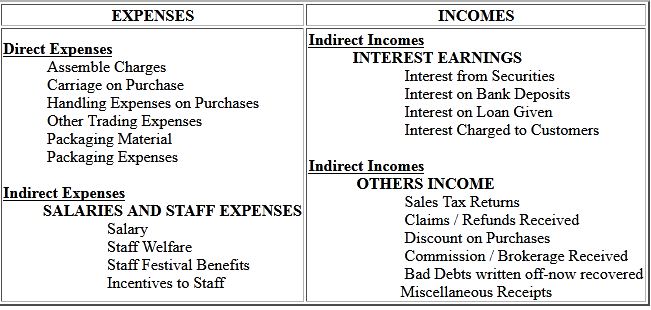
EXPENSES INCOMES
Direct Expenses
           Assemble Charges
           Carriage on Purchase
           Handling Expenses on Purchases
           Other Trading Expenses
           Packaging Material
           Packaging Expenses

Indirect Expenses
          SALARIES AND STAFF EXPENSES
                          Salary
                          Staff Welfare
                          Staff Festival Benefits
                          Incentives to Staff
Indirect Incomes
           INTEREST EARNINGS
                        Interest from Securities
                        Interest on Bank Deposits
                        Interest on Loan Given
                        Interest Charged to Customers

Indirect Incomes
            OTHERS INCOME
                        Sales Tax Returns
                        Claims / Refunds Received
                        Discount on Purchases
                        Commission / Brokerage Received
                        Bad Debts written off-now recovered
                       Miscellaneous Receipts
2.Create the following Ledgers under Multiple Mode
Go to Gateway of Tally > Accounts Info > Ledgers > Create (Multiple)
EXPENSES
ADMINISTRATIVE EXPENSES
              Printing & Stationery
              Traveling Expenses
              Conveyance
              Telephone / Taxes / Fax Charges
              Courier / Postage Charges
              Repairs and Maintenance
              Rent Paid
              Electricity Bill
              License Fees,
              Municipal Taxes
             Subscription & Membership Fees
              Fuel and Maintainence of Vehicle
              Warehousing Expenses
             Insurance Premiums
             Legal Expenses
             Professional Fees
             Computer Expenses
            Charity and Donations
            Loss due to Theft/Pilferage/Damage
             Discounts and Sales Rebates
             Miscellaneous Expenses

SELLING & DISTRIBUTION EXPENSES
            Advertisement Expenses
            Sales Promotion Expenses
            Entertainment Expenses
            Conference Expenses
            Exhibition Expenses
            Bad Debt
            Interest on Loans
            Interest Charged by Supplier
            Bank Charges
            Commission / Brokerage Paid
            Depreciations 

30 November, 2019

A further discussion on these options is necessary.

A further discussion on these options is necessary.
Use EFFECTIVE dates for vouchers?
Select Yes if you want to enter effective dates for vouchers. You would opt for this if you have instances where a transaction under consideration for overdue/ ageing analysis is recorded currently but will come into effect form another date. If the effective dates is entered,the overdue/ageing will be considered form the effective date and not from voucher date.

Make Optional as Default
Setting this option to Yes, will set your Voucher to Optional Voucher by default. Refer to Optional Vouchers for further details.
Note: For Memorandum and Reversing Journal voucher the option Make Optional as Default will not be shown.

 Use common narration?
Select Yes to give a common narration for the entire voucher. Tally.ERP9 vouchers can have multiple entries. Hence, you may wish to give a common narration for all the entries of the voucher. Select No, you do not want a common narration.
Example of common narration  in a voucher: 

Narrations for each entry 
Select Yes, if you want to give a separation narration for each entry of a voucher. This would be applicable for a multiple entry voucher where you went separate details for each entry. Select No if you do not want a separate narration for each entry.

Note: To get the Narration for each entry raise the  sales in As Voucher and for Payment or Receipt vouchers, sel Use Single Entry mode for Pymt/ Rcpt/Contra to in F12:Configurations.

For Delivery Not. Receipt Not, Sales order, Purchase order, Physical Stock, Stock Journal, Rejection In and Rejection Out, the option Narration for each is deactivated. 

Print after saving voucher?
Select Yes to print every voucher after entering it, else select No. This is suitable for an online environment were you use Tally.Erp9 printed vouchers as the formal voucher. Remember, that the transaction is already recorded and posted and should you wish to make corrections to the printed voucher, you must alter the Tally.ERP9 voucher online and print it again.

Note: If we select Receipt as Type of Voucher the option Print Formal Receipt saving will be displayed. Depending on the Type of Voucher you have selectd to create or alter, different printing features appear in this field.
 

11 February, 2019

Classify the Accounts Group

Tally Practical Notes

Capital Account:- This records the Capital and Reserves of the company. The ledgers that belong to Capital Accounts are share Capital, Partner's Capital A/c, Proprietor's Capital Account and so on.

Reserves and Surplus [Retained Earnings]:- This contains ledgers like Capital Reserve, General Reserve, Reserve for Depreciation and so on.

Current Assets:- Current Assets record the assets that do not belong either to Bank Accounts or to Cash-in-Hand sub groups.

Bank Accounts:- Current Account, Savings Account, Short term deposit accounts and so on.

Cash in Hand:- Tally ERP 9 automatically creates Cash a/c in this group. You can open more than one cash account, if necessary.

Deposit (Asset):- Deposits contain Fixed Deposits, Security Deposits or any deposit made by the company (Not received by the company, which is a liability).

Loans & Advances (Asset):-This records all loans given by the company and advances of a non-trading nature (example: advance against salaries) or even for purchase of Fixed Assets. We do not recommend you to open advances to Suppliers' account under this group. For further details, please refer to the section on Common Errors.

Stock-in-Hand:- This group contains accounts like Raw Materials, Work-in-Progress and Finished Goods. The balance control depends on whether you have selected Integrated Account-cum-Inventory option while creating the company. (refer to Company creation section for more details) Let us consider these options:

Integrated Accounts-cum-Inventory:- This option has a significant effect on the Balance Sheet and Profit & Loss Account. If set to Yes, it brings the stock/inventory balance figures from the inventory records and provides a drill down to the Stock registers from the Balance Sheet.

          you are not allowed to directly change the closing balance of an account under this group. You are allowed to pass transactions in Inventory records and the account balances are automatically reflected in the Balance Sheet as Closing Stock.

Non-integrated Accounts-cum-Inventory:- If integrated Account-cum-inventory option is set to No, it ignores the inventory book figures and picks up manually entered entered closing stock balances from the ledger account created. This provides the facility to maintain accounts separately and inventory separately.
         You are not allowed to pass transactions if your accounts that come under this Group. It allows you to hold opening and closing balances only. Since no vouchers can be passed for these accounts, they are the only accounts for which the closing balances can be directly altered (by an authorised user only).

Sundry Debtors:- For customer accounts refer to common and possible errors in grouping of accounts section.
         Accounts like Outstanding Liabilities, Statutory Liabilities and other minor liabilities can be created directly under this group. Sub-groups under Current Liabilities are Duties and Taxes, Provisions and Sundry Creditors.

Duties and Taxes:- Duties and Taxes contain all tax accounts like VAT, CENVAT, Excise, Sales and other trade taxes and the total liability (or asset in case of advances paid) and the break-up of individual items.

Provisions:- Accounts like Provision for Taxation, Provision for Depreciation and so on are recorded under  Provisions.

Sundry Creditors:- For trade Creditors, refer to common and possible errors in grouping of accouts section.

Investments:- Group your investment accounts like Investment in Shares, Bonds, Govt. Securities, long term Bank deposit accounts and so on. This allows you to view the total investments made by the company.

Loan (Liability):- Loans that a company has borrowed, typically long-terms loans.

Bank OD Accounts [Bank OCC Accounts]:- Tally.ERP 9 provides you with distinct types of Bank Accounts,
Bank OCC A/c:- To record the company's overdraft accounts with banks. For example, Bill Discounted A/c's and Hypothecation A/c's etc.

Note: An account under Bank OCC A/c group is printed as a separate Cash Book in the traditional Cash Book format and does not from part of the Ledger.

Secured Loans:- Term loans or other long/medium term loans, which are obtained against security of some asset. does not verify the existence of the security. Typical accounts are Debentures, Term Loans, and so on.

Unsecured Loans:- Loans obtained without any security. Example: Loans form Directors/Partners or outside parties.

Suspense Account:- In modern accounting, many large corporations use a Suspense Ledger to track the money paid or recovered, the nature of which is not yet known. The most common example is money paid for Traveling Advance whose details will be known only upon submission of the Travelling Allowance bill. Some companies may prefer to open such accounts under Suspense Account.

Loans and Advances (Asset) group:- The suspense account is a Balance Sheet item. Any expense account even if it has 'suspense' inits name, it should be opened under Revenue group like Indirect Expenses and not under Suspense Account group.

Miscellaneous Expenses (Asset):- This group is typically used for legal disclosure requirements such as Schedule VI of the Indian Companies Act. It should hold incorporation and pre-operative expenses. Companies would write off a permissible portion of the account every year. A balance remains to an extent that cannot be written off in Profit & Loss Account. Tally ERP 9 does not show loss, carried forward in the Profit & Loss Account, under this group. the Profit & Loss Account balance is displayed separately in the Balance Sheet.

Branch/Divisions:- This maintains ledger accounts of all your company's branches, divisions, affiliates, sister concerns, subsidiaries and so on. Tally.ERP 9 permits Sales and Purchase transactions to take place with accounts opened here. Remember, these are their accounts in your books and not their books of accounts.
         Just treat them as any other party account. If you wish to maintain the books of a branch/division on your computer, you must open a separate company. (Tally.ERP9 allows maintenance of multiple company accounts).

Sales Account:- You can classify your sales accounts based on Tax slabs or type of sales. This also becomes a simple mechanism for preparation of Tax returns.

Examples:   
                  Domestic Sales
                  Export Sales
Now under Domestic Sales open the following ledgers:
Sales(10%)
Sales (5%)
Sales (exempt)
You can even open an account as Sales Returns under the group Domestic Sales to view your net sales after returns (or the returns may be directly passed though Journal against the specific Sales account).
Note: Do not create customer accounts under this group. For more details, refer to common and possible errors in grouping of accounts section.

Purchase Account:- This is similar to sales accounts, except for the type of transactions.

Direct Income [Income Direct]:- These are Non-trade income accounts that affect Gross Profit. All trade income accounts fall under Sales Accounts. you may also use this group for accounts like Servicing, Contract Charges that follow sales of equipment.
         For a professional services company, you may not use Sales Account group at all. Instead, open accounts like Professional Fees under this group.

Indirect Income [Income Indirect]:- These are miscellaneous non-sale income accounts. Example: Rent Received and Interest Received.

Direct Expenses [Expenses Direct]:- These are Manufacturing or direct trading expenses. These accounts determine the Gross Profit of the company.

Indirect Expenses [Expenses Indirect]:- All administrative, selling or non-direct expenses.
Profit & Loss Account is a reserved primary account in Tally.ERP9. you can use this account to pass adjustment entries through journal vouchers. For example, transfer of profit or loss account to Capital or Reserve account.

15 November, 2018

Select / Alter / Delete Company

company profile change or delete process
Company Alter/Delete Process

Select Company:

Once we have created a company, we have to Select it and not Creating it. To Select any Existing company Press F:1 key on your keyboard. Enter the Path where you saved your company and from the list of available companies, Select your Company by Arrow Keys & Enter.

Alter Company:
In Order to Alter or Change any Information you entered while creating company, we have to first select the company. Press Alt + F3 to go to Company Info Screen from GOT and Select “Alter”. Make whatever alterations you want and don’t forget to Accept Those changes by pressing Enter Key until tally asks Accept – Yes or Press Ctrl + A to accept everything on screen. Delete

Delete Company:
In order to delete a company we have to first Select the Company. Press Alt + F3 > Alter > Press Alt + D to delete a company. Tally will ask for confirmation > Press Y for Yes.


Main Screen User Interface :-
Main Area (Gateway of Tally) :-
Left Hand Area provides information on Current Period, Current Date and List of Selected Companies. Whereas the Right Side of Main Screen gives information on Creation of Accounting Masters and Importing Master information Creation of Accounting Vouchers and Importing transaction information, Viewing and printing financial reports using the information given in Masters and Transactions
Top Button Panel :-
It Includes commands like, Print, Export, Email, Upload, Shop, Language, Keyboard, Control Centre, Support Centre and Help.
Right Button Panel :-
It Includes Select & Shut Company, Date & Period, Company Info, Connect or Disconnect Company, Features & Configurations.
Info Panel :-

The Information Panel appears at the bottom part of the screen. It is divided into five blocks, the first four block give you vital information on the various aspects of the product installed on your computer whereas the last block contains the calculator.

Creating Company - Practice- 01

tally company creation process
Company Create in Tally

Run Tally
Whenever you Start a company, default settings opens the first company which is already created on the System. So we need to Shut Existing Company by pressing (ALT + F1) from Gateway of Tally (GOT). Company Info Screen (Alt + F:3) > Create Company

Directory:
While creating Company we can define Directory Path. To go back Press Shift + Tab. It is a path where we Save our Tally Company Data. By default it goes to Tally folder in C:\ Drive or to the Installation folder of the Tally Software. We prefer to save your Data either in D:\ or E:\ drive or at safe network location. Generally we advise students to Create their New Folder with their Roll No in E:\ Drive (Student Drive). Thereafter provide Path E:\RollNo. Ask your Faculties where to save your date or leave it.

Name:
Enter the Official Name of the Company or Firm for which you are creating Books of Accounts. For educational purpose you can enter your name or roll no.

Mailing Name:
If your company uses Mailing name other than Official Name you may change it. By default it is same as Company Name.

Address:
Enter the Address of the company or firm for which you are creating books of accounts. For Educational purpose students can enter their own address or your institute’s address.

Statutory Compliance:
Select the country for which you are preparing accounts of a company or firm. We shall obviously select India.

State & Contact:
Enter the State name in which your Company or Firm is doing its business Operations. E.g. Bihar, Jharkhand etc. Also enter Contact Details like Phone Number & E-mail.

Maintain:
Enter New Rupee Symbol by pressing Ctrl + 4.

Accounts Only:- If you don’t want Integrated Inventory System. Inventory Features will be deactivated. Accounts with Inventory:- Select if we want to integrate Inventory with Financial Accounting. We shall be selecting Accounts with Inventory.

Accounting Year:
Financial Year from :- Enter the Financial Year from which you want to start Computerised Accounting System on Tally. We shall be selecting 01/04/2012.

Books beginning from :- Same as financial year. It will differ only in the year of establishment.

Security Control:
Tally Vault Password :- By typing this password you will not be able to see company name. It will be completely secret. You can access it by Company Number Only. For educational purpose students will NOT enter password here.
Select “Yes” at Security Control. Enter the User Name for Administrator – YourName.

Enter Password – RollNo and repeat the same password in next line.

Other Options:
We shall be discussing other options in our later sessions. Just go on pressing ENTER key until Tally asks for Accept – “Yes”.

Alternatively you can press Ctrl + A